Next Issue: The Netflix of Magazines
Clipboard01


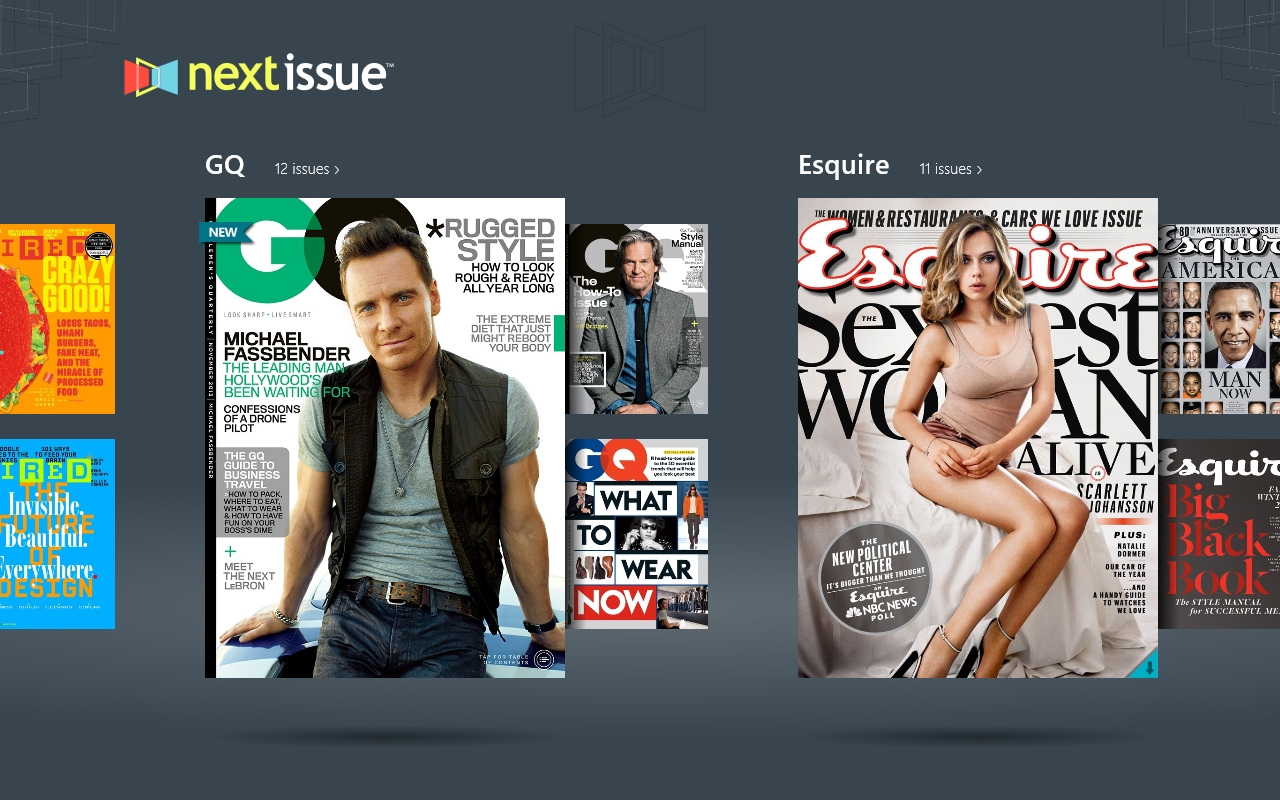
Last night I discovered an awesome new service called Next Issue which is pretty much a Netflix type subscription service for magazines. For either $9.99 a month or $14.99 a month you get access to over 100 magazines each month (including back issues). No separate subscription fees, just one fee and you get it all. It’s available in the Windows 8 store (desktop or tablet), iPad and Android tablets.

The $9.99 plan includes most of the magazines, however the $14.99 tier includes weekly magazines like The New Yorker and TIME. I’ve only tried it on my MacBook so far (running Windows 8 via BootCamp) but I can only imagine the tablet experience would be the better experience. My only complaint so far is that you can’t really zoom in the desktop version so it’s difficult to read a lot of the smaller text in some magazines without placing your face awkwardly close to the screen. I haven’t tried outputting to my TV via HDMI, but I assume that experience would be better. However, I prefer to read magazines in bed, so viewing on a laptop is still a bit inconvenient. I’d be willing to bet the tablet version would offer a much better reading experience.

You can sign up for a free 30 day trial for either tier at www.NextIssue.com

Check out my video below for a look at the app in action.
iOS 7 is here!

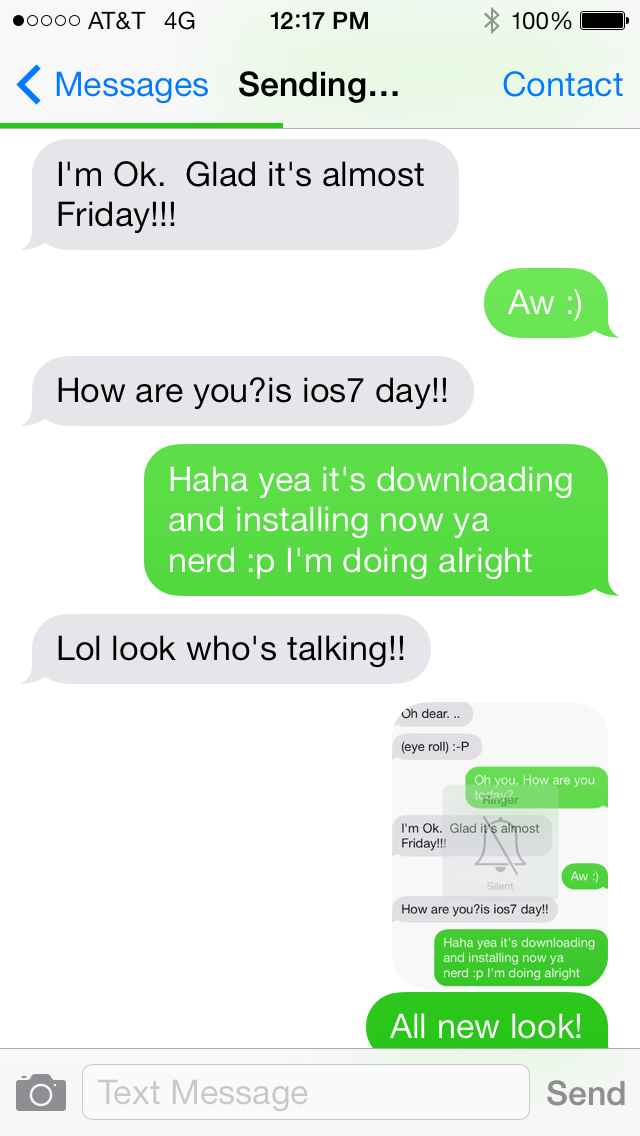
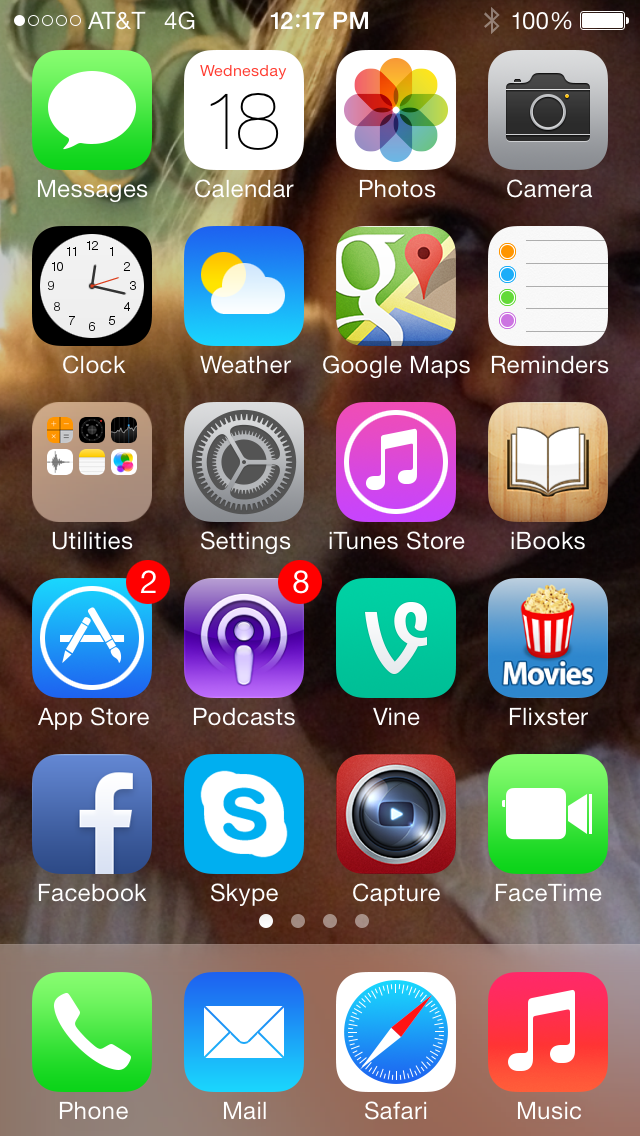
So I’ve been crazy excited for iOS 7 to arrive and today at 11AM (Mountain Time) it did! I had no problems downloading and installing it on my iPhone 5, but so far I’m having issues with my iPad 4. It downloaded the update but when I try to install it it says ‘software update unavailable’.

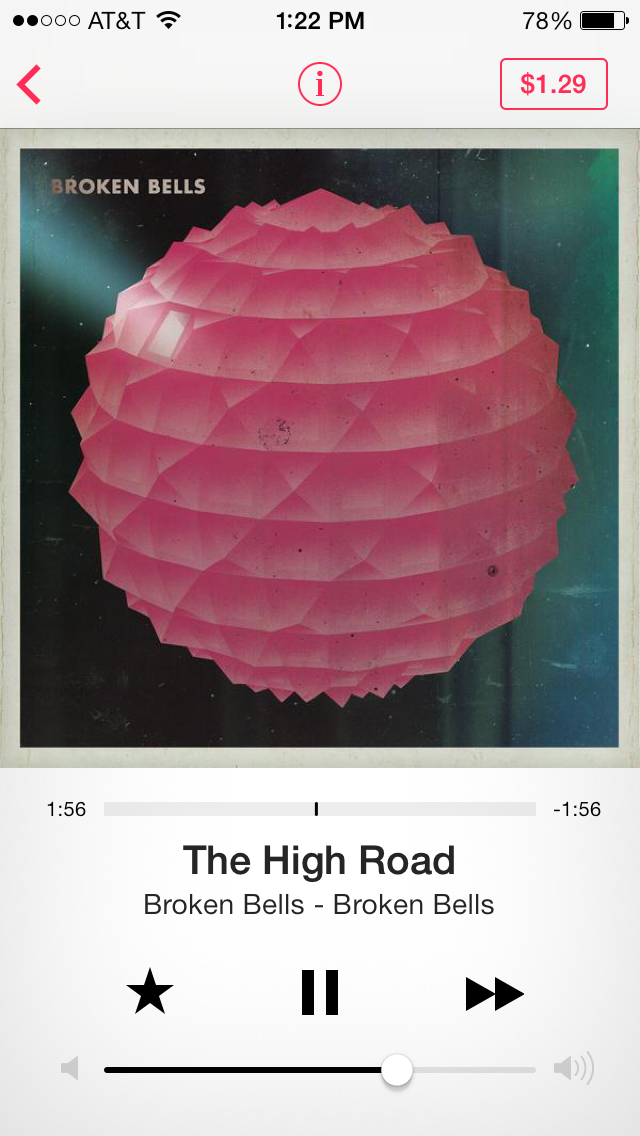
Anyway, I love the new look and feel of everything and the way it switches between apps now is awesome. I’m particularly in love with iTunes Radio. I love the design and I’ve been listening to ‘Ra Ra Riot Radio’ for the last hour and have discovered more amazing music than I ever have on Pandora and Spotify. I’m pretty certain I’m going to end up subscribing to iTunes Match as a result.

I don’t have much else to say right now, but I just LOVE the look:

1 2 3

Biking the Boise Greenbelt (video)

I picked up a Zéfal iPhone bike mount for $19.99 at Wal-Mart and shot some video on our ride on the Boise Greenbelt Sunday evening. The mount includes a rain proof case that will protect your iPhone from the elements and keep it quite sturdy which is great for shooting video. It includes some inserts that can be adjusted to fit either the iPhone 4/4S or the iPhone 5, and is pretty simple to assemble with the included allen wrench.

20130804-230827.jpg

20130804-231257.jpg

Google Chromecast

aa


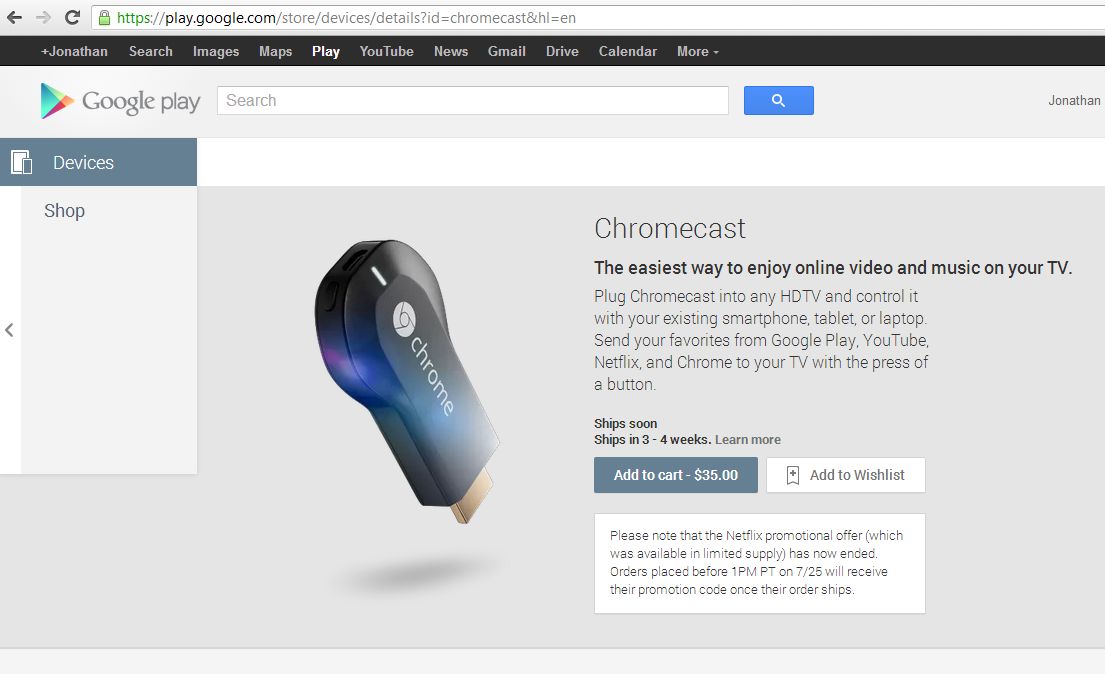
Last week, seemingly out of nowhere, Google announced Chromecast. It’s an HDMI dongle that allows you to stream content to your TV from the cloud using almost any device connected to the same WiFi network (yes, it works with the iPhone and iPad as well as Android devices).

You simply plug the device into an HDMI port on your TV and plug it into a power source (my TV has a USB port right beneath one set of HDMI ports which is quite convenient. It also comes with a power outlet adapter) and you’re (almost) ready to go. Once it’s set up you’ll see a Chromecast button in supported apps and you simply click the button and Chromecast will begin streaming the content on your TV. You can control the content with your device, but you can also exit whatever app you launched the video from and continue using the device while the Chromecast continues streaming.

The only annoying thing about the Chromecast for me was the setup. It wasn’t as simple as it should’ve been. For some reason you have to change the name of your WiFi network to the name of your Chromecast device (ie. Chromecast9999) in order to connect to the Chromecast and get it set up. Then you can change your WiFi network back to it’s original name before you save the connection settings for the Chromecast.

I have yet to discover if that’s a process you have to go through everytime you use the device on a new WiFi network or if it’s simply for the initial setup. I hope it’s the latter because otherwise it won’t be as convenient of a device as it could be. Sure you don’t have to carry around an HDMI cable, but fooling around with router settings every time you go somewhere new would be a chore.

Overall I’m impressed with the device and for $35 it’s a steal. It initially came with 3 months of Netflix, however due to overwhelming demand Google had to remove that offer (luckily I got in before it disappeared). I’m also impressed that it works so easily with iOS apps, though as of right now you cant use it with the Chrome iOS app (it does support the desktop version). At the moment you can use it with YouTube and Netflix on iOS (I’m not sure if there’s a Google Play app on iOS, but I assume if there is that would work as well) and there should be more content to come in the near future.

XCOM: Enemy Unknown released for iPad / iPhone today!

images

Firaxis Games’ 2012 award winning (to include many GOTY awards) game XCOM: Enemy Unkown has released for iOS today. For $19.99 you can get the both the iPad and iPhone version of the game and both sync to the cloud so you can start a game on one platform and continue it on the other. From what I’ve seen so far it seems the superior experience will be had on the iPad / iPad mini, but the iPhone version is just as playable, just with a bit more zooming and scrolling.

I loved XCOM on the 360 and also on PC, but it always felt like a tablet version of the game would be more enjoyable. I haven’t fired the game up yet on my iPad but I’ll be sure to post some thoughts and screenshots when I have a chance. I’m just incredibly excited that I’ll finally be able to play this AAA title on the go!

Some are complaining about the “steep” price, but realize that XCOM was a $60 console / PC game that can occasionally be bought for less when it’s on sale. The PC version currently sells for $39.99 on Amazon, while the Xbox 360 version is selling for $32.65. The iPad version currently lacks multiplayer, however it is said to be coming in a future free update to the game.

Control your Mac remotely with your iPad

Oftentimes I’ll connect my MacBook Pro to a TV to watch movies or stream content from the web, and it always used to annoy me that I’d have to get up and go to the computer to type something. I could use my wireless mouse to click anything from the couch, but if I ever needed to search for something I was out of luck.

Screen Shot 2013-04-27 at 12.54.44 PM

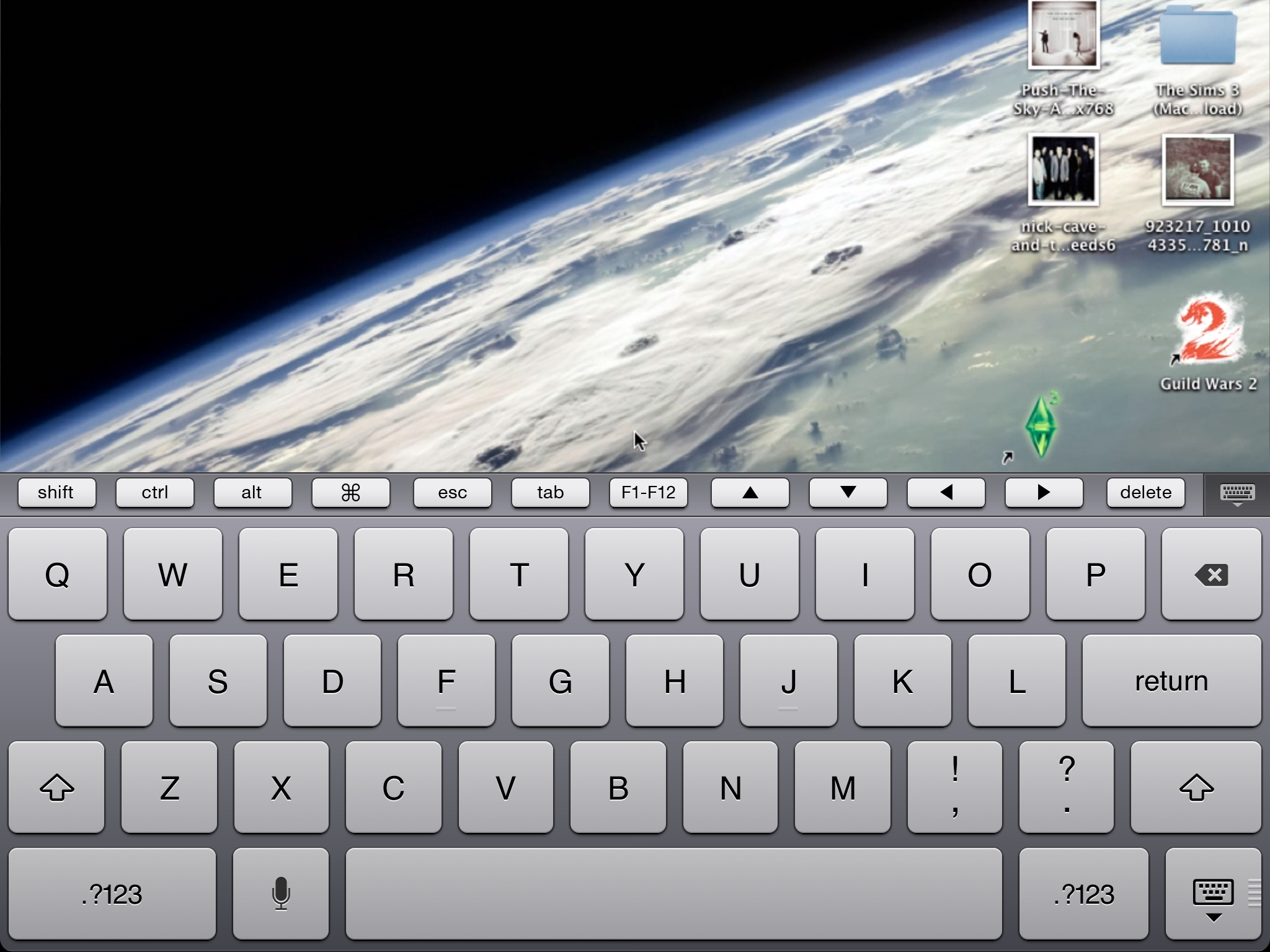
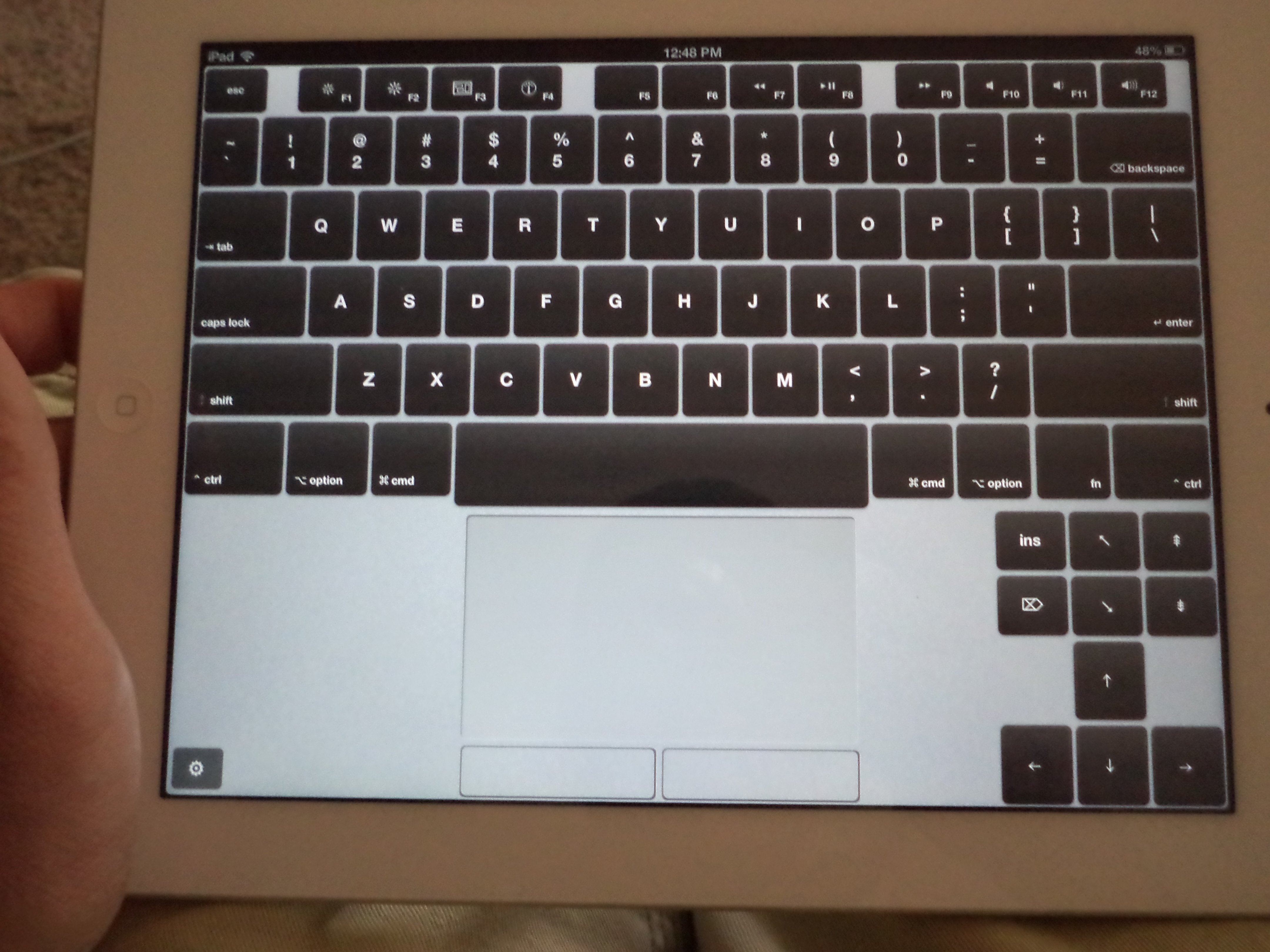
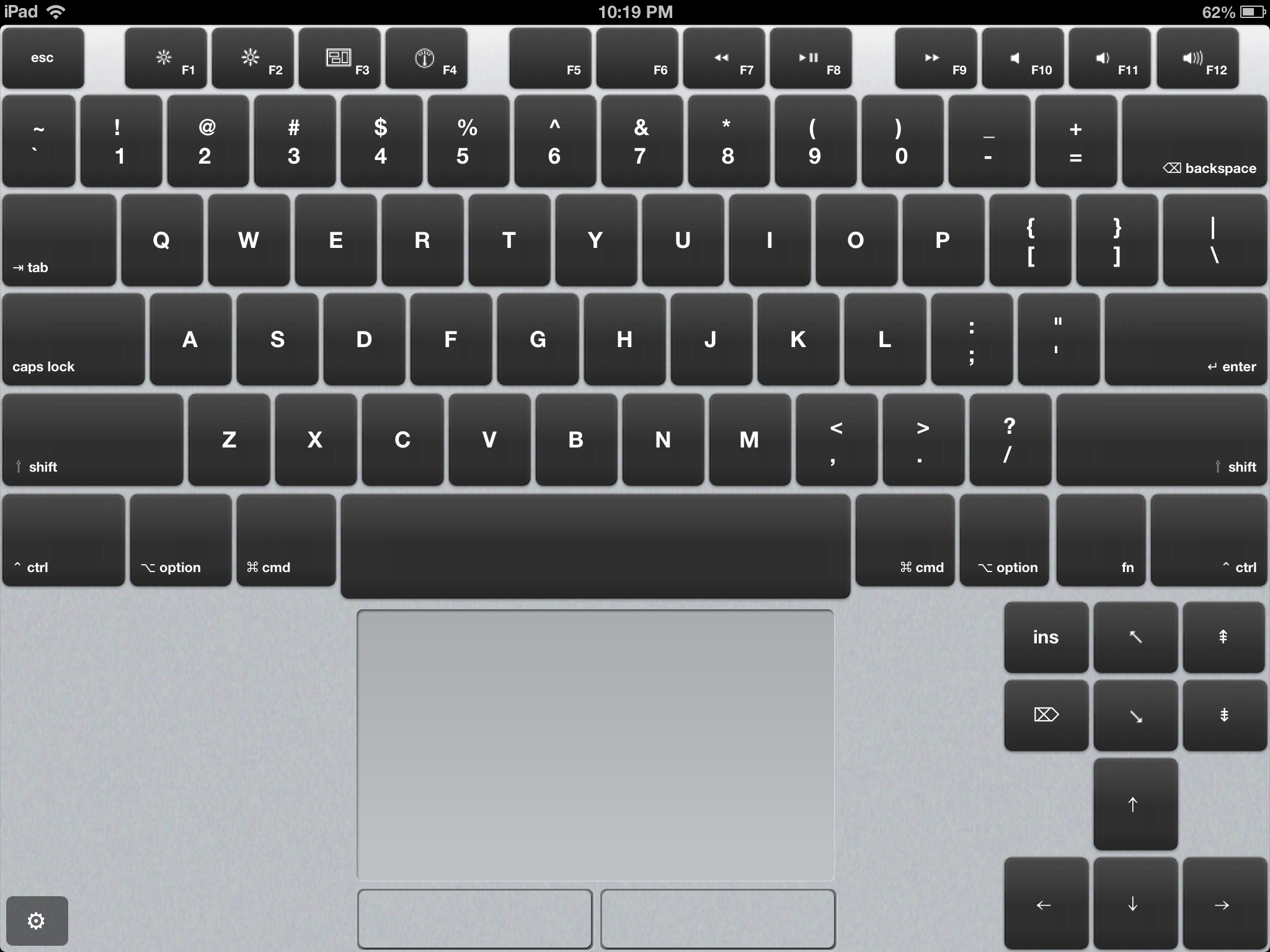
The first app that solved this problem for me was Air Keyboard, a free app that replicates a Mac’s keyboard and allows you to control your Mac as if you had a bluetooth keyboard (it works over WiFi). You simplydownload the app on your iPad and install the companion app on your Mac and that’s it. You know have the equivalent of a bluetooth keyboard, complete with a touch pad and plenty of other features.


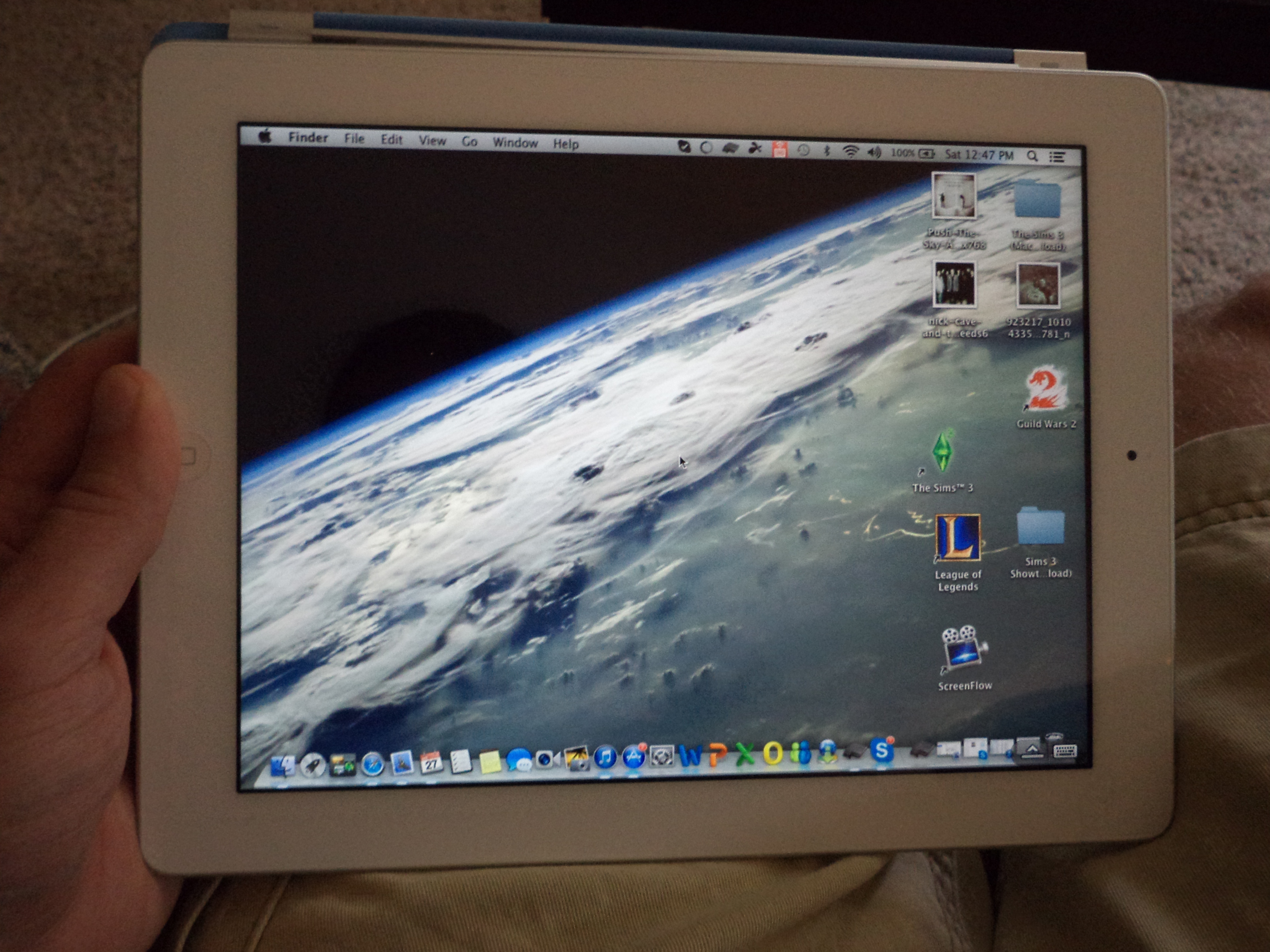
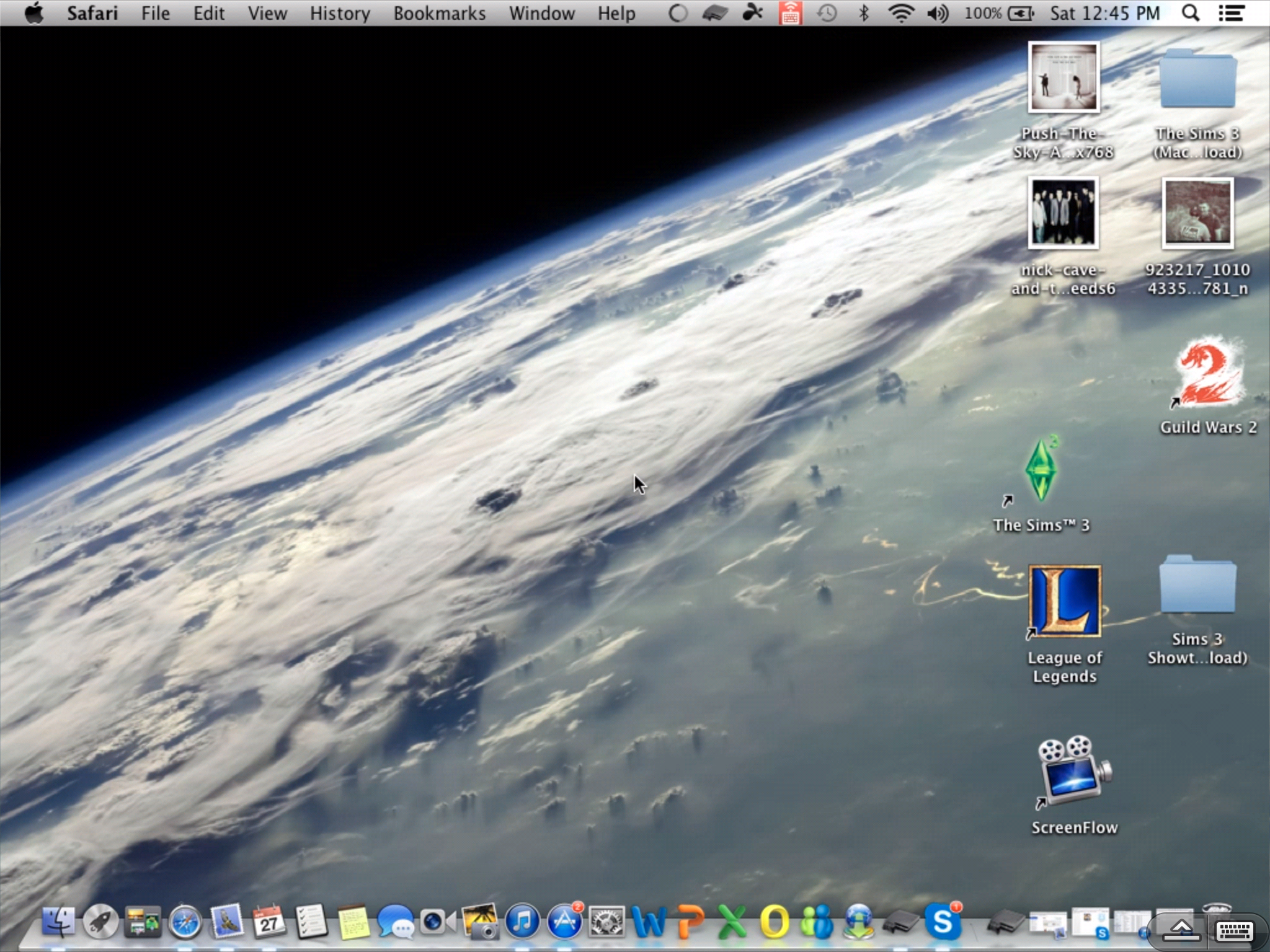
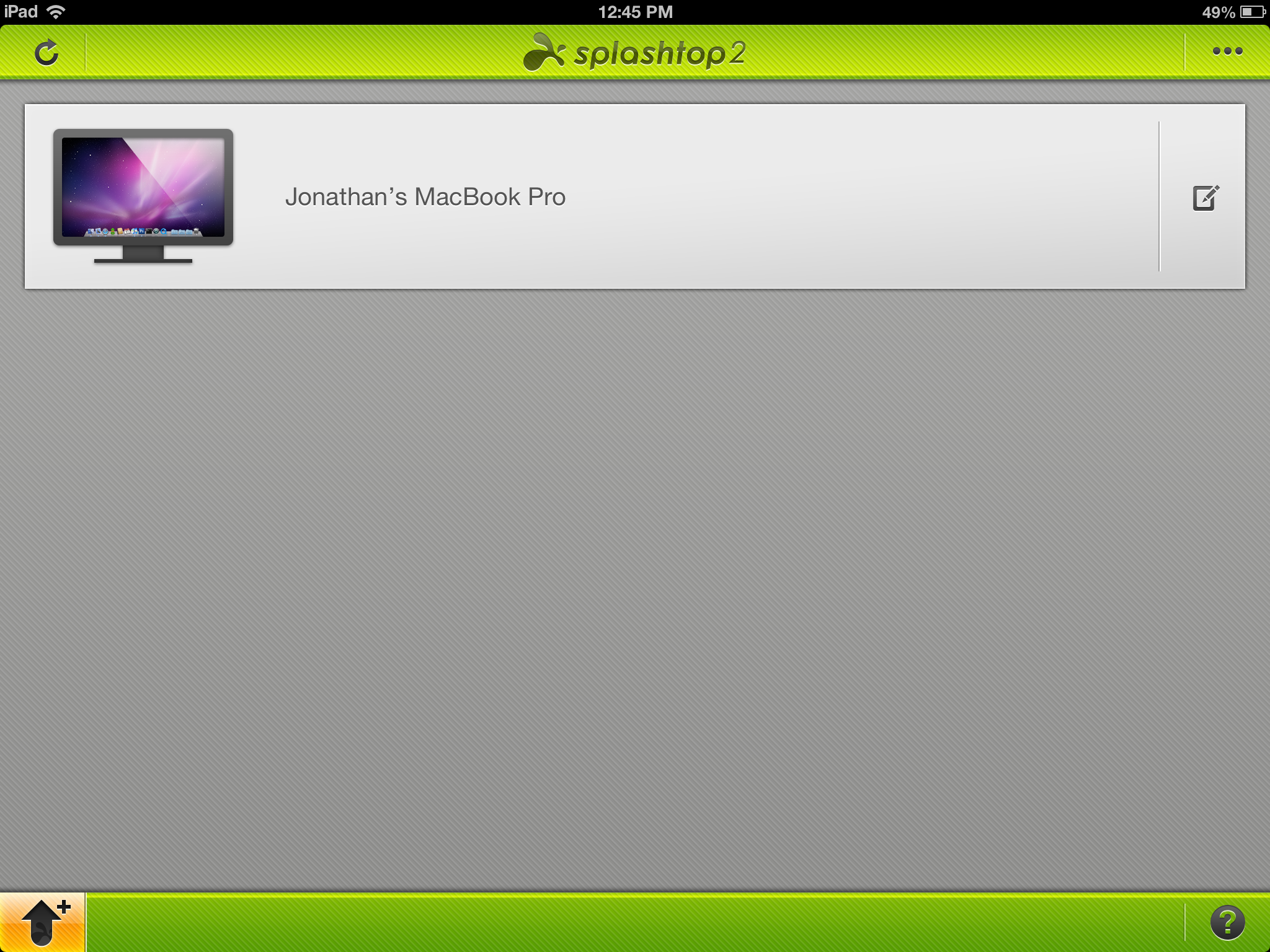
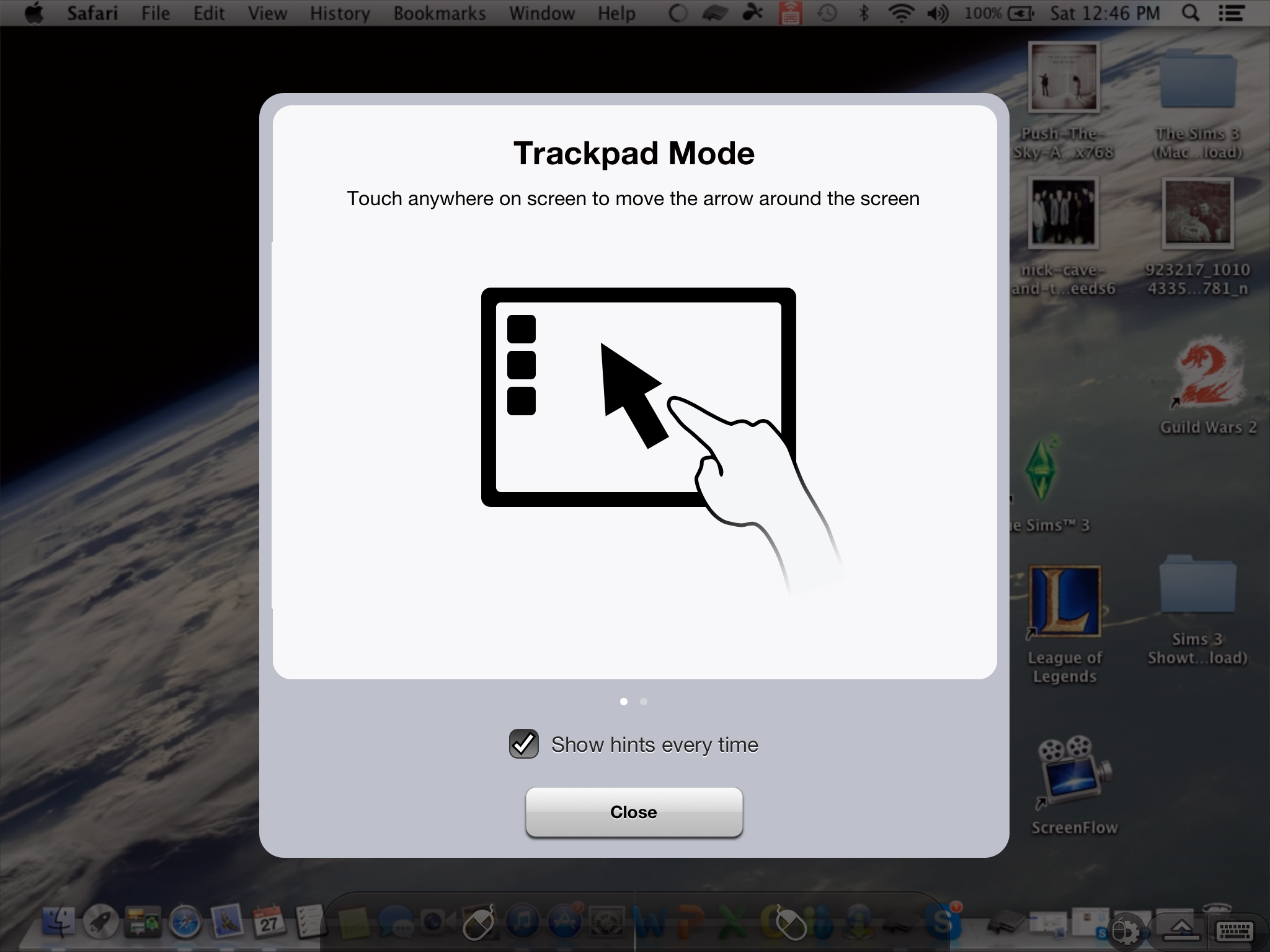
Next up is Splashtop 2, a remote desktop solution. Splashtop 2 is $4.99 for the iPad Screen Shot 2013-04-27 at 12.56.44 PM(there’s a separate iPhone version)for basic functionality with two subscription models
for advanced functionality. Splashtop allows you to not only control your Mac remotely, but also allows you to see the screen on your iPad. Therefore you can control your Mac from anywhere in the house. You can leave it on your desk and access it via Splashtop to e-mail a file, or play a movie that’s on your Mac and view it on your iPad in bed. Also you can use your Mac to access websites that require flash from your iPad.

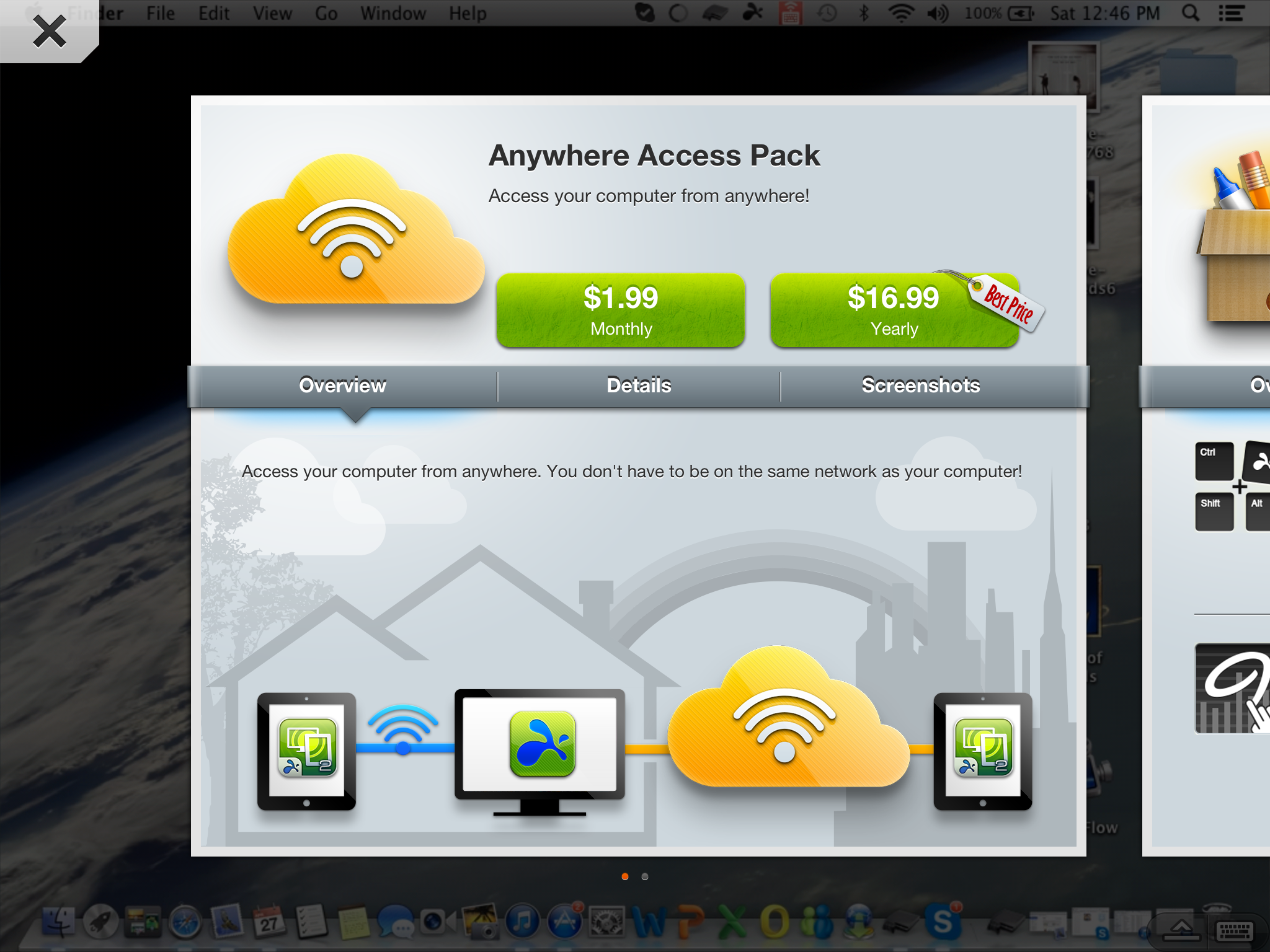
Splashtop only allows you to control your Mac from the same WiFi network. If you’d like to access your Mac from anywhere you can subscribe to Anywhere Access for $1.99/mo or $16.99/yr.

Both of these apps have made my life easier and more convenient. I’ve included several screenshots below that allow you to see the apps in action.

Air Keyboard (FREE)


DSC04773

IMG_0213

Splashtop 2 ($4.99)

DSC04772


IMG_0216

IMG_0217

IMG_0214

IMG_0218

IMG_0219

Can’t miss MAC deal! Name your own price for 10 apps

Screen Shot 2013-04-18 at 1.02.49 PM


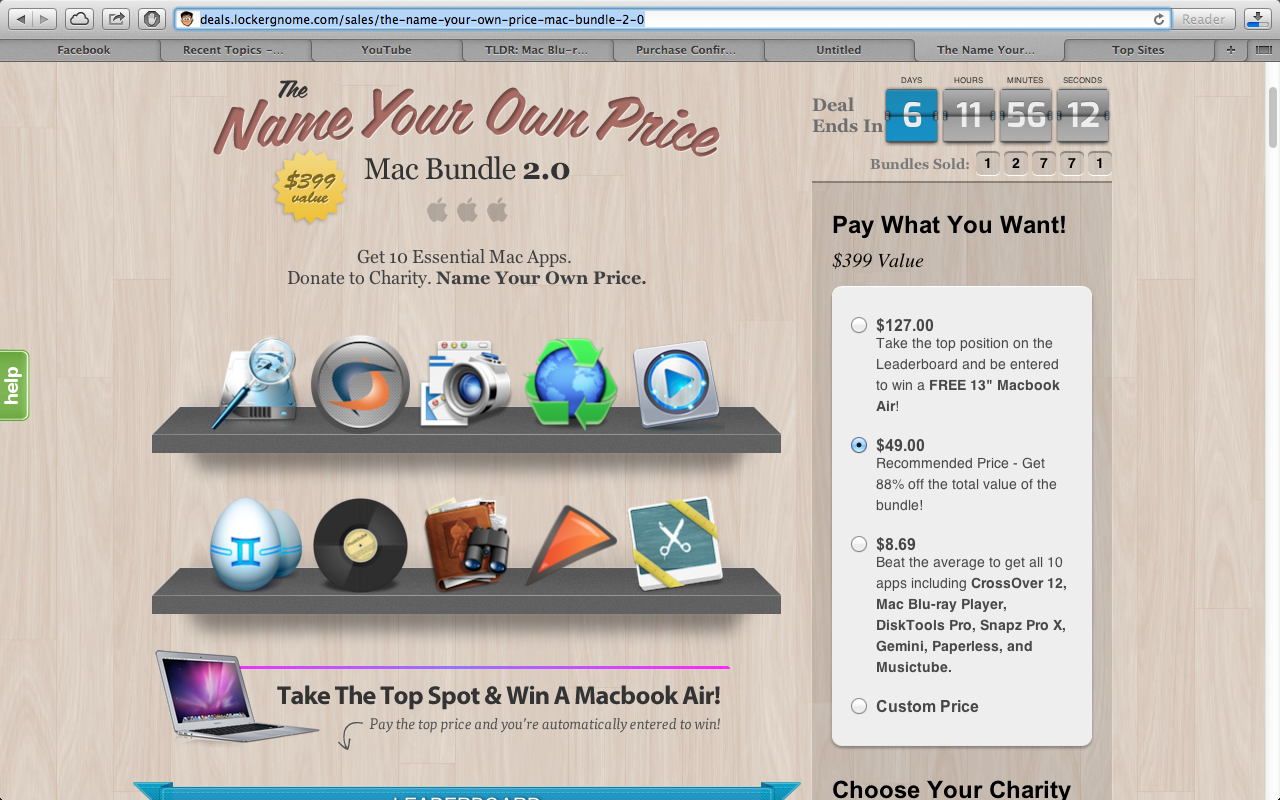
LockerGnome / Chris Pirillo present the ‘name your own price Mac bundle, 2.0’ where you can get $399 worth of map apps for whatever you’d like to pay. Pay at least the average price ($8.69 as of this post) and you get all ten apps (if you choose to pay less than that you’ll only get a handful of them).

The two apps that stood out to me are Crossover 12 which allows you to emulate Windows applications on your Mac and Snapz Pro X which allows you to record your screen. I run Windows 8 via BootCamp on my Mac but very seldom feel like booting to Windows. I’m hoping I can run some of my Windows games via Crossover, we’ll see. Snapz Pro will come in handy for recording gameplay videos as well.

How to create a picture slideshow in iMovie

Tonight I found myself wanting to take a series of pictures and edit them together into a video with music in the background. Seems easy enough, right? Well I’m no iMovie expert and it took a bit to figure it out, so I figured I’d share the process with you in case you happen to be having the same problem.

First of all you’ll want to create a new project.Screen Shot 2013-04-02 at 1.36.48 AM

I assumed I’d be able to find my pictures in the event library on the left side, however they were nowhere to be found. So I clicked import and thought I’d be able to get pictures into my library that way, however this method only allows you to add video files.

The easiest way to get pictures into your project is to open iPhoto and select all of the pictures you want. Next you’ll want to drag them over to iMovie and drop them right onto the project (the top left area where the timeline is). If you try to drop them anywhere else you’ll get a message saying you can drop them directly onto the timeline.

That’s basically it. You can edit the rest as you please and finalize your project to get a completed slideshow. I’ll post my final project below as an example once it finishes processing.

I hope I was able to help.

Wordament

Wordament is a fun and addicting iOS game and it’s also the first iOS game to feature Xbox Live achievements (if you login via an Xbox Live / Windows Live account). It’s basically a boggle game but it’s unique in that there’s always a game going on. As soon as you open the app you can be thrown into a game in progress and finish out the round. You’ll get a score based on the words you find in the round and at the end of each round you’ll see a leaderboard showing you how you match up against everyone else who was playing that round.

There’s no waiting for games or waiting for your turn, it’s always on in a sense. This is what makes it addicting. You’ll be telling yourself “one more round” as you lay in bed and next thing you know an hour has passed.

I love that it has Xbox achievements and that it’s 100% free. Sure the achievements are only worth 5 gamerscore each, but it’s a nice addition. Let’s hope Microsoft brings more games to iOS soon.