Google Chromecast

aa


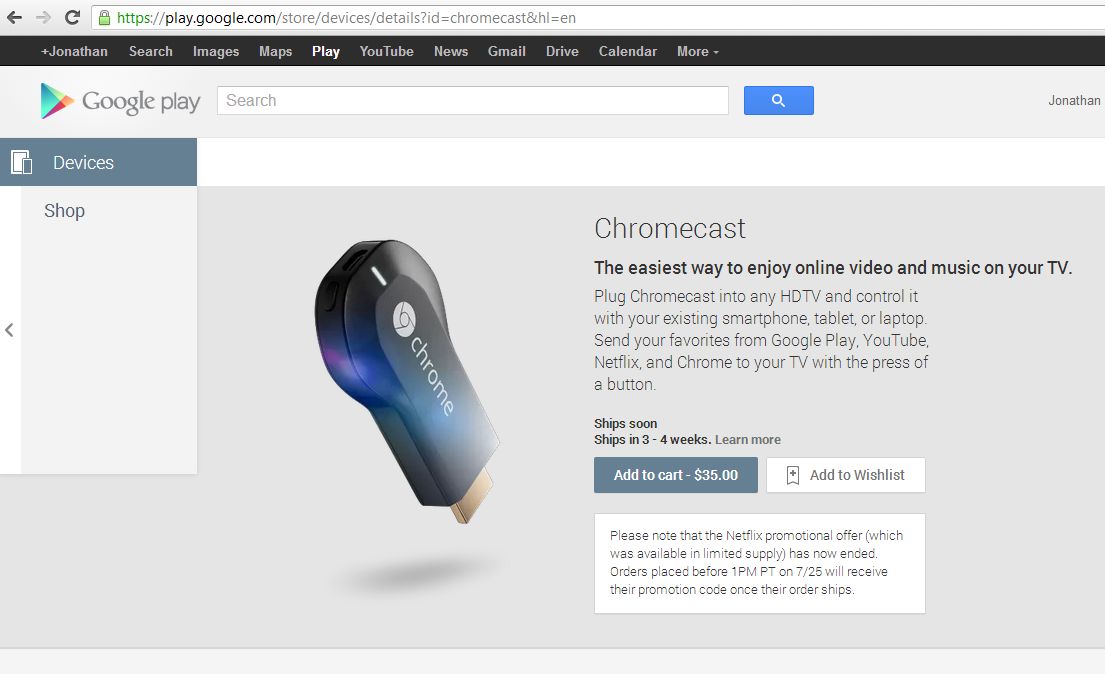
Last week, seemingly out of nowhere, Google announced Chromecast. It’s an HDMI dongle that allows you to stream content to your TV from the cloud using almost any device connected to the same WiFi network (yes, it works with the iPhone and iPad as well as Android devices).

You simply plug the device into an HDMI port on your TV and plug it into a power source (my TV has a USB port right beneath one set of HDMI ports which is quite convenient. It also comes with a power outlet adapter) and you’re (almost) ready to go. Once it’s set up you’ll see a Chromecast button in supported apps and you simply click the button and Chromecast will begin streaming the content on your TV. You can control the content with your device, but you can also exit whatever app you launched the video from and continue using the device while the Chromecast continues streaming.

The only annoying thing about the Chromecast for me was the setup. It wasn’t as simple as it should’ve been. For some reason you have to change the name of your WiFi network to the name of your Chromecast device (ie. Chromecast9999) in order to connect to the Chromecast and get it set up. Then you can change your WiFi network back to it’s original name before you save the connection settings for the Chromecast.

I have yet to discover if that’s a process you have to go through everytime you use the device on a new WiFi network or if it’s simply for the initial setup. I hope it’s the latter because otherwise it won’t be as convenient of a device as it could be. Sure you don’t have to carry around an HDMI cable, but fooling around with router settings every time you go somewhere new would be a chore.

Overall I’m impressed with the device and for $35 it’s a steal. It initially came with 3 months of Netflix, however due to overwhelming demand Google had to remove that offer (luckily I got in before it disappeared). I’m also impressed that it works so easily with iOS apps, though as of right now you cant use it with the Chrome iOS app (it does support the desktop version). At the moment you can use it with YouTube and Netflix on iOS (I’m not sure if there’s a Google Play app on iOS, but I assume if there is that would work as well) and there should be more content to come in the near future.
Increase your password security with Dashlane

This morning while reading the New York Times I came across David Pogue’s article, “Remember All Those Passwords? No Need“. In the article Pogue speaks about the benefits of  using a password manager and specifically the benefits of using Dashlane. I had never heard of Dashlane until I came across this article, but I had heard of and considered using 1Password.

Pogue’s article on Dashlane sold me, however. Not only did it convince me I should use a password manager, it also convinced me that Dashlane was the one for me. One of the big draws? It’s free! (though I chose to subscribe via the $20/yr option). It was incredibly easy to set up and once you have a secure “master password” you’re practically good to go.

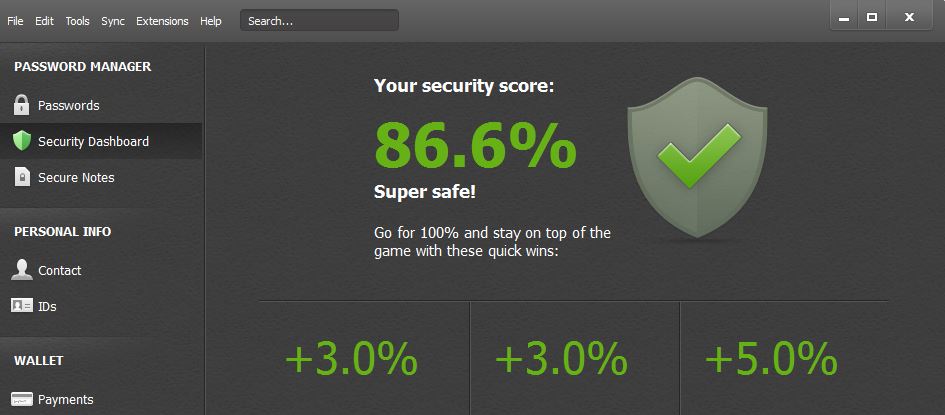
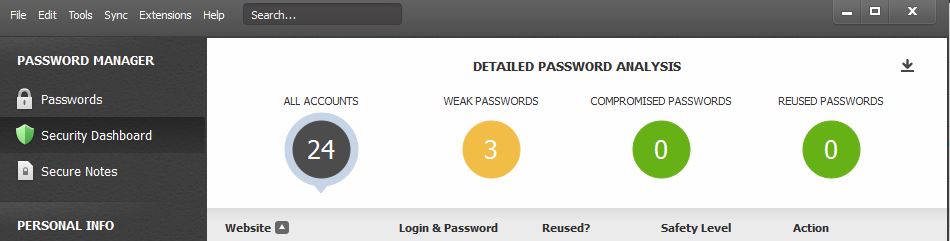
Dashlane will automatically gather your saved passwords from your web browsers and analyze them for you, making you aware of passwords you should change.

Capture

Capture2


I initially found that I had a TON of reused passwords and at first I was unwilling to change them, but Dashlane made it a breeze. It’ll take you right to the change password screen on most websites, automatically fill in your old password and generate a random, strong password for use on the website. It’ll automatically save this new password for you and use it to log you into your account the next time you visit the site.

The Dashlane mobile app is free and after you login with your master password (and PIN if you choose to use one on the mobile app) you can view all of your passwords. This makes it great if you need a password on another computer where you can’t install the plugin. It will only reveal your passwords after you login using the master password and PIN so you don’t have to worry about someone gaining access to all of your passwords if they get ahold of your phone. You just want to make sure your master password is as strong and secure as it can be.

Dashlane can also store your ID information (ex: Driver’s License) and Credit Card information making your web browsing experience as convenient and secure as possible.

If you want to learn more about Dashlane and how it (or any password manager) can benefit you, I suggest you read Pogue’s article, it’s filled with a lot of good advice.

Dashlane is available for Windows, Mac, and iOS and is completely free. The subscription option gets you a few more bells and whistles, listed below. Try it out today: https://www.dashlane.com/

3


This blog post is not an endorsement or advertisement, I simply love the product and wanted to share!

Control your Mac remotely with your iPad

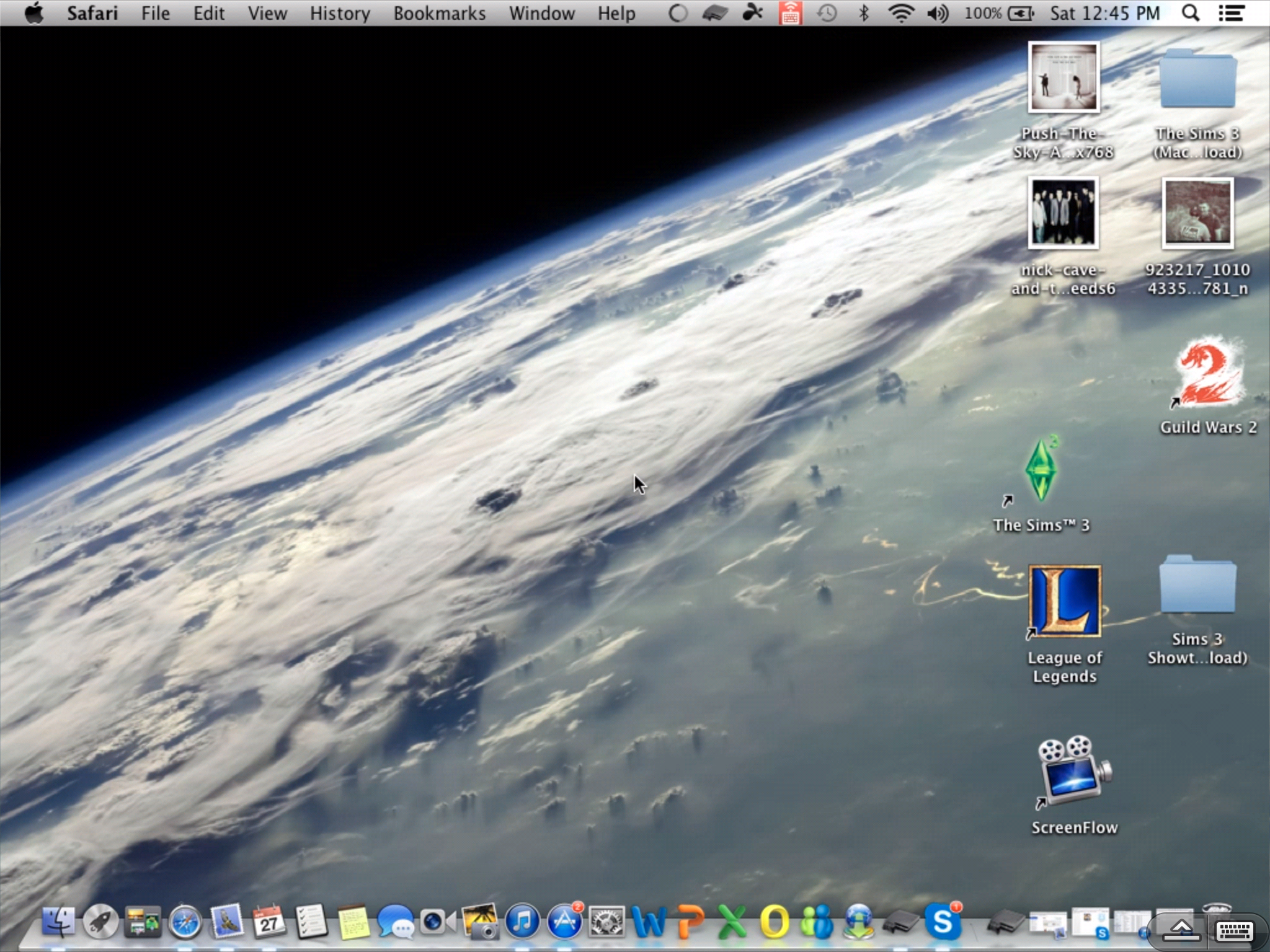
Oftentimes I’ll connect my MacBook Pro to a TV to watch movies or stream content from the web, and it always used to annoy me that I’d have to get up and go to the computer to type something. I could use my wireless mouse to click anything from the couch, but if I ever needed to search for something I was out of luck.

Screen Shot 2013-04-27 at 12.54.44 PM

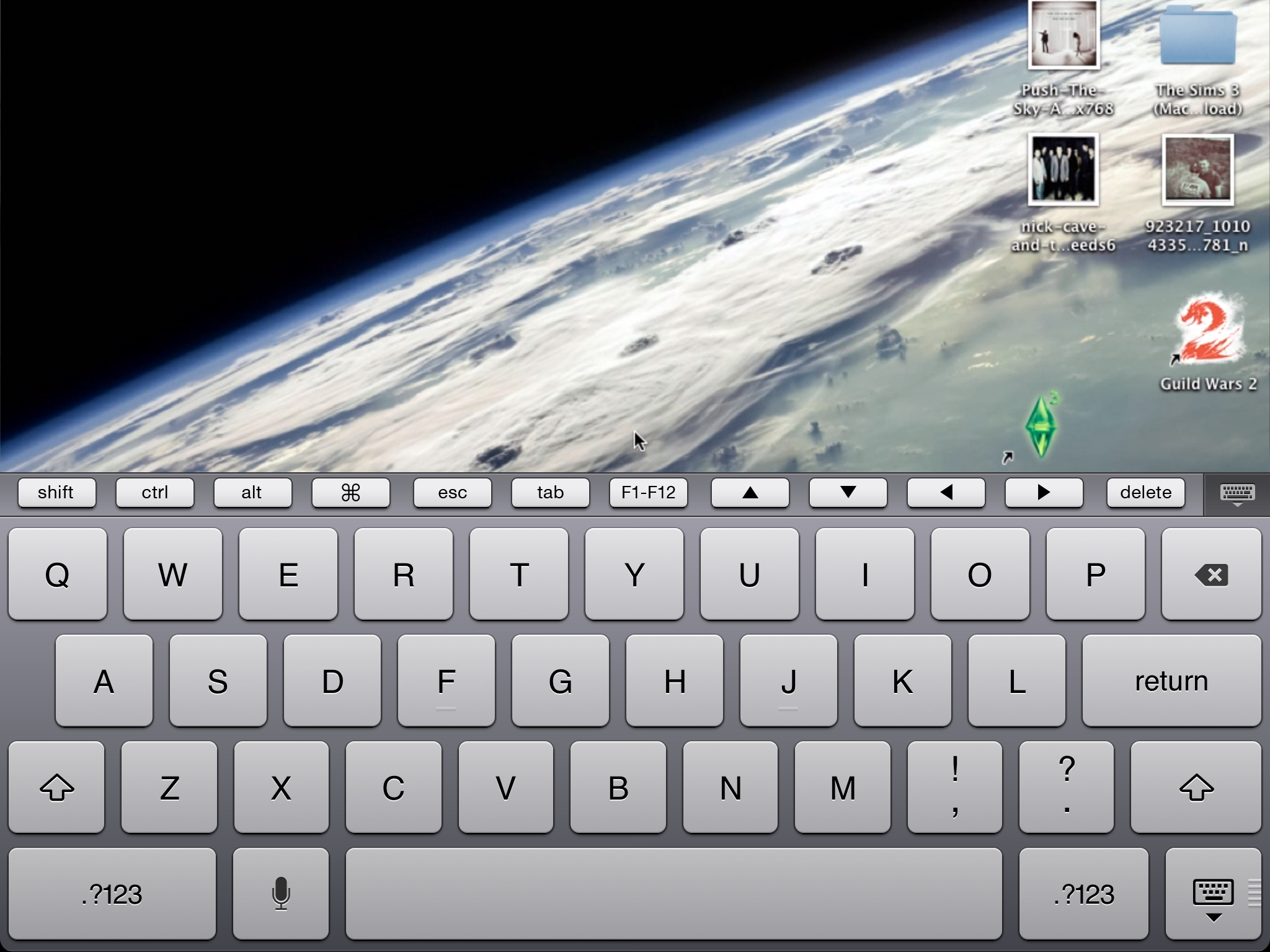
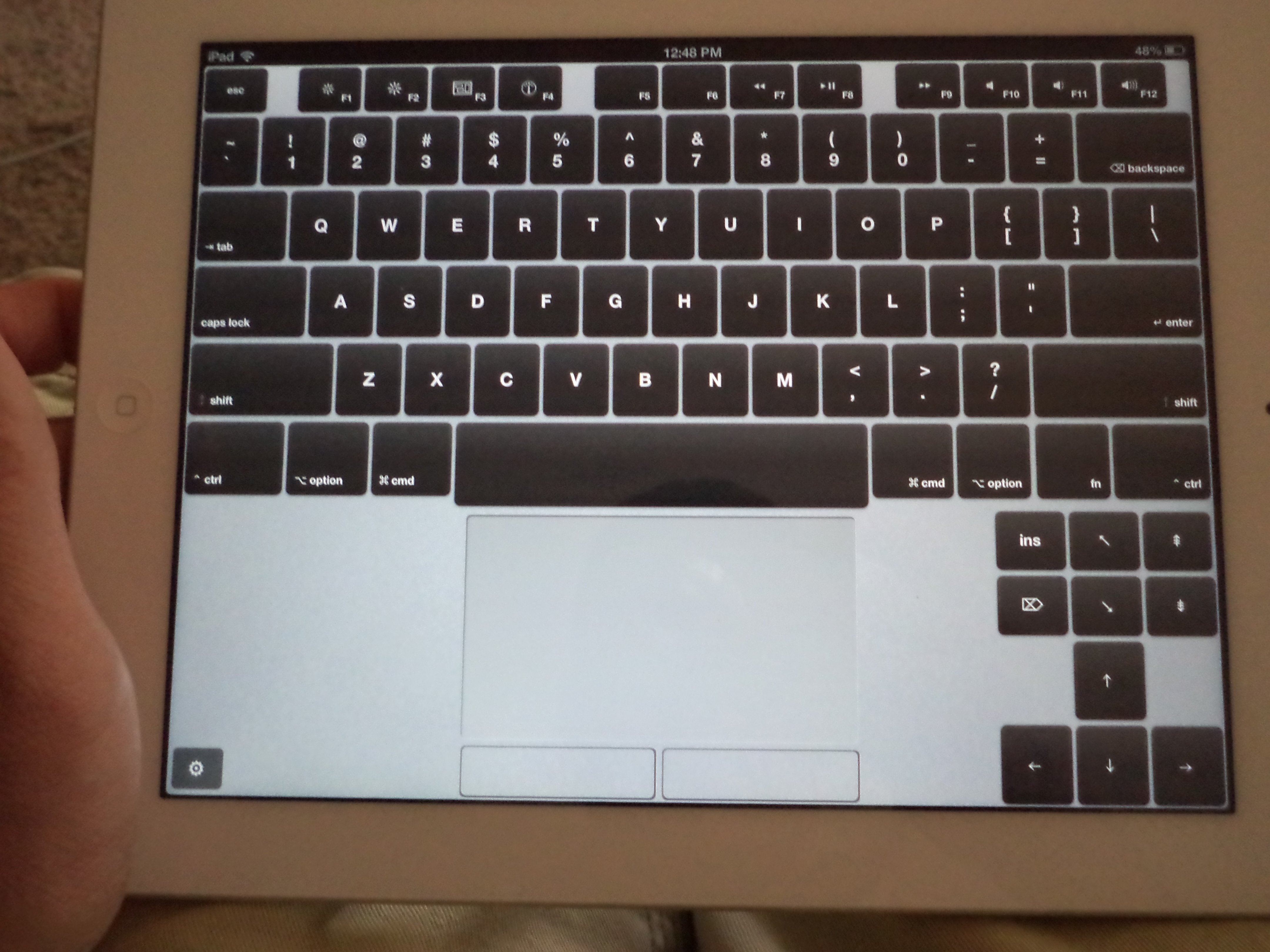
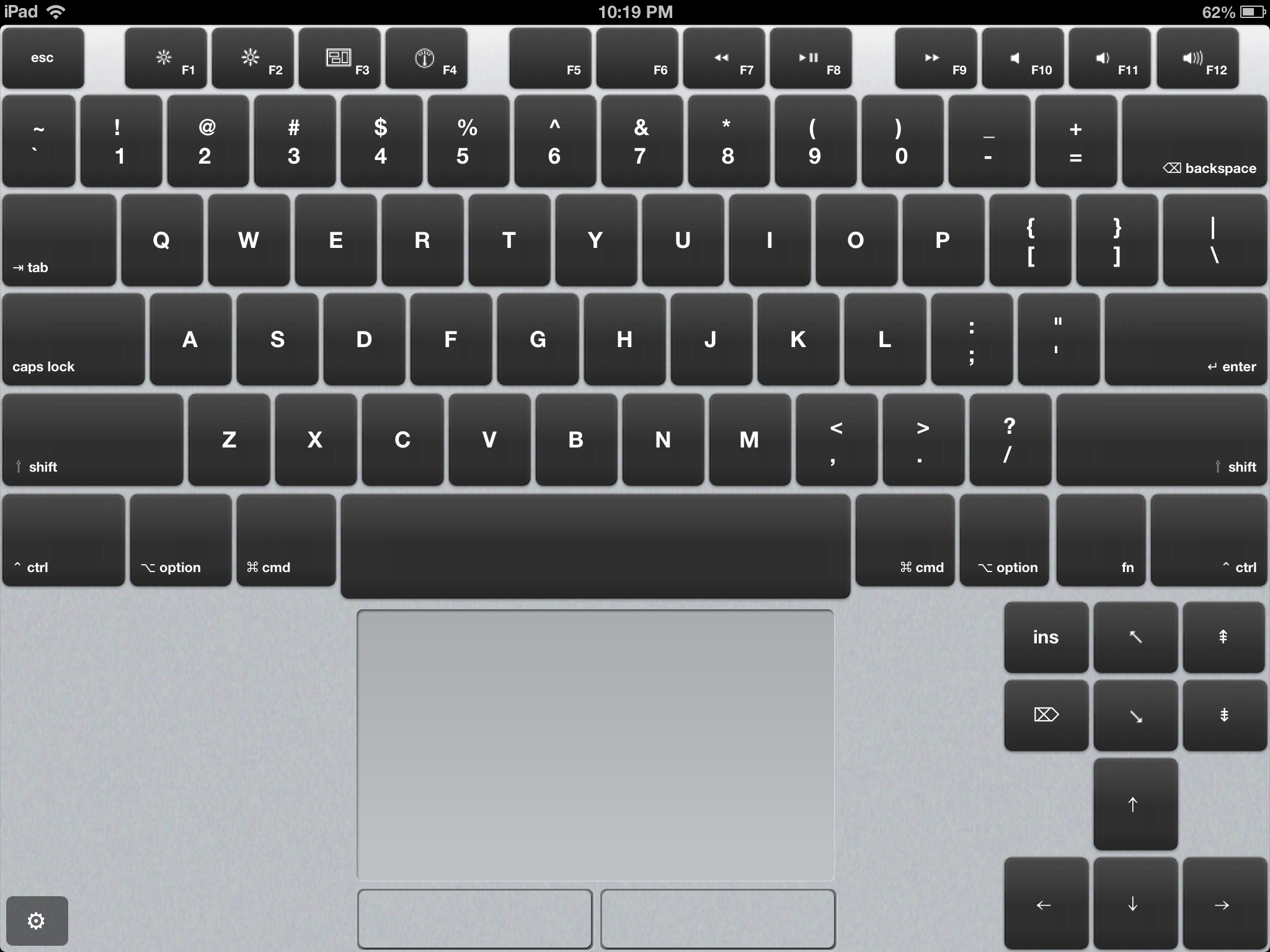
The first app that solved this problem for me was Air Keyboard, a free app that replicates a Mac’s keyboard and allows you to control your Mac as if you had a bluetooth keyboard (it works over WiFi). You simplydownload the app on your iPad and install the companion app on your Mac and that’s it. You know have the equivalent of a bluetooth keyboard, complete with a touch pad and plenty of other features.


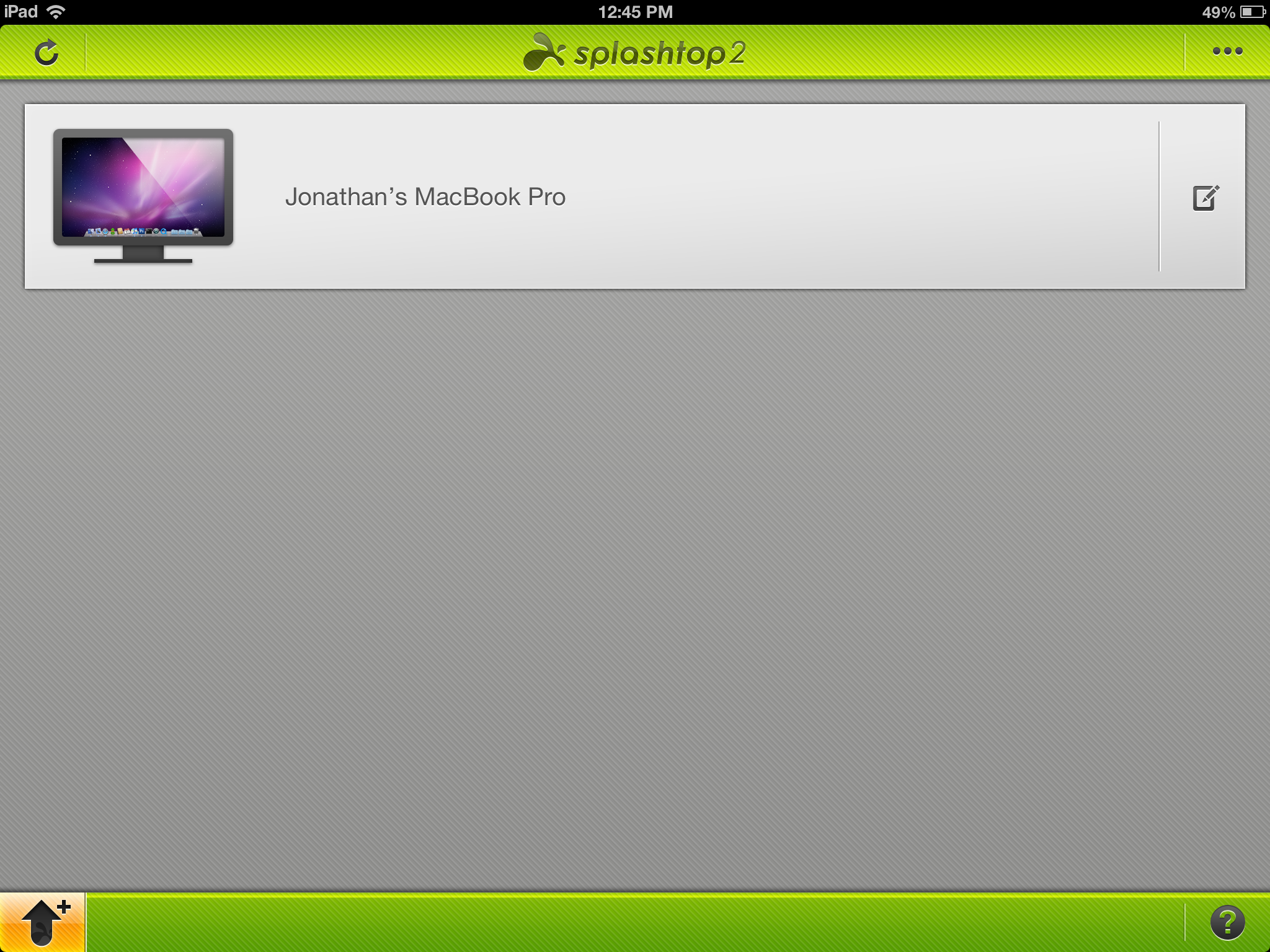
Next up is Splashtop 2, a remote desktop solution. Splashtop 2 is $4.99 for the iPad Screen Shot 2013-04-27 at 12.56.44 PM(there’s a separate iPhone version)for basic functionality with two subscription models
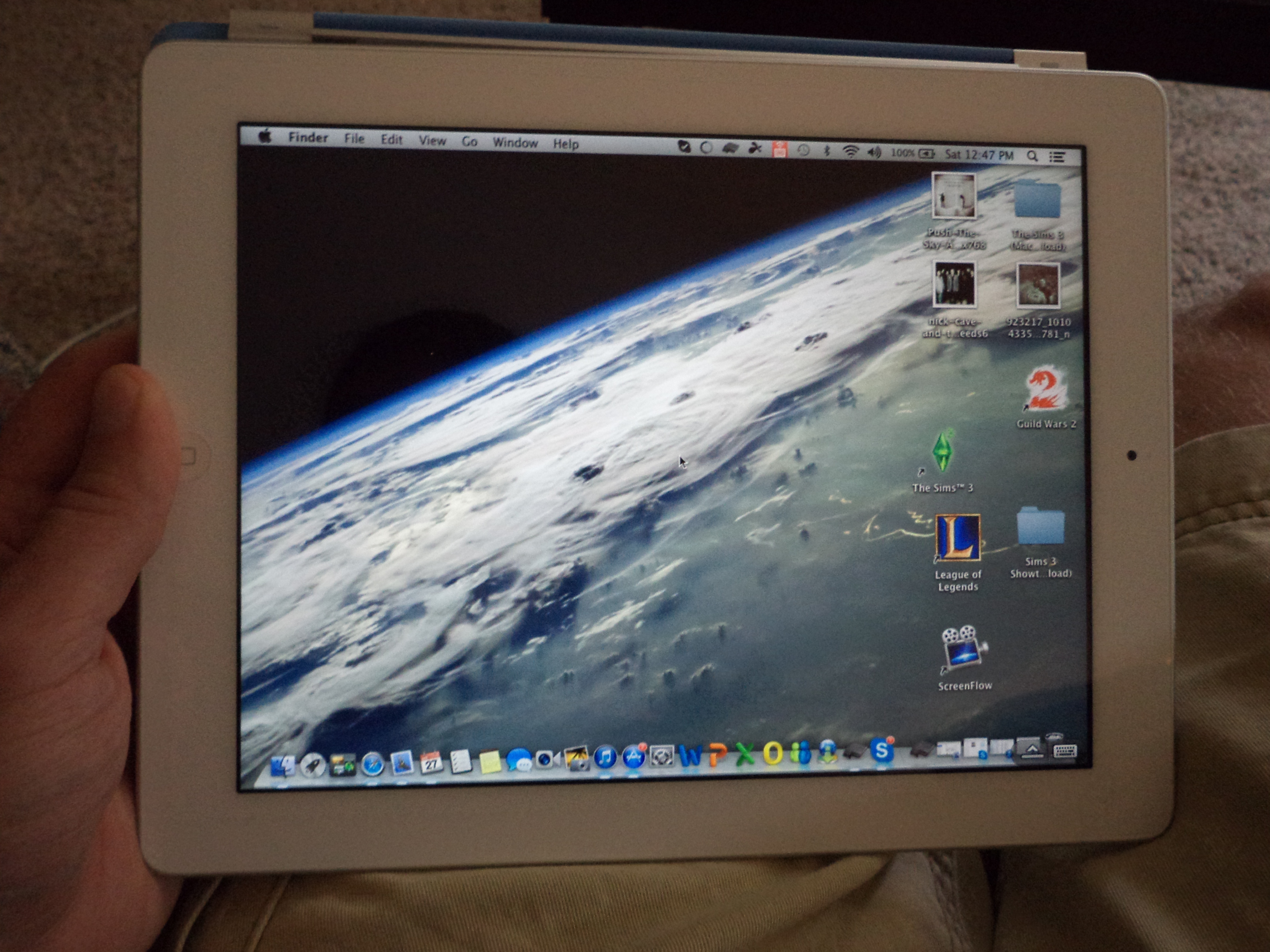
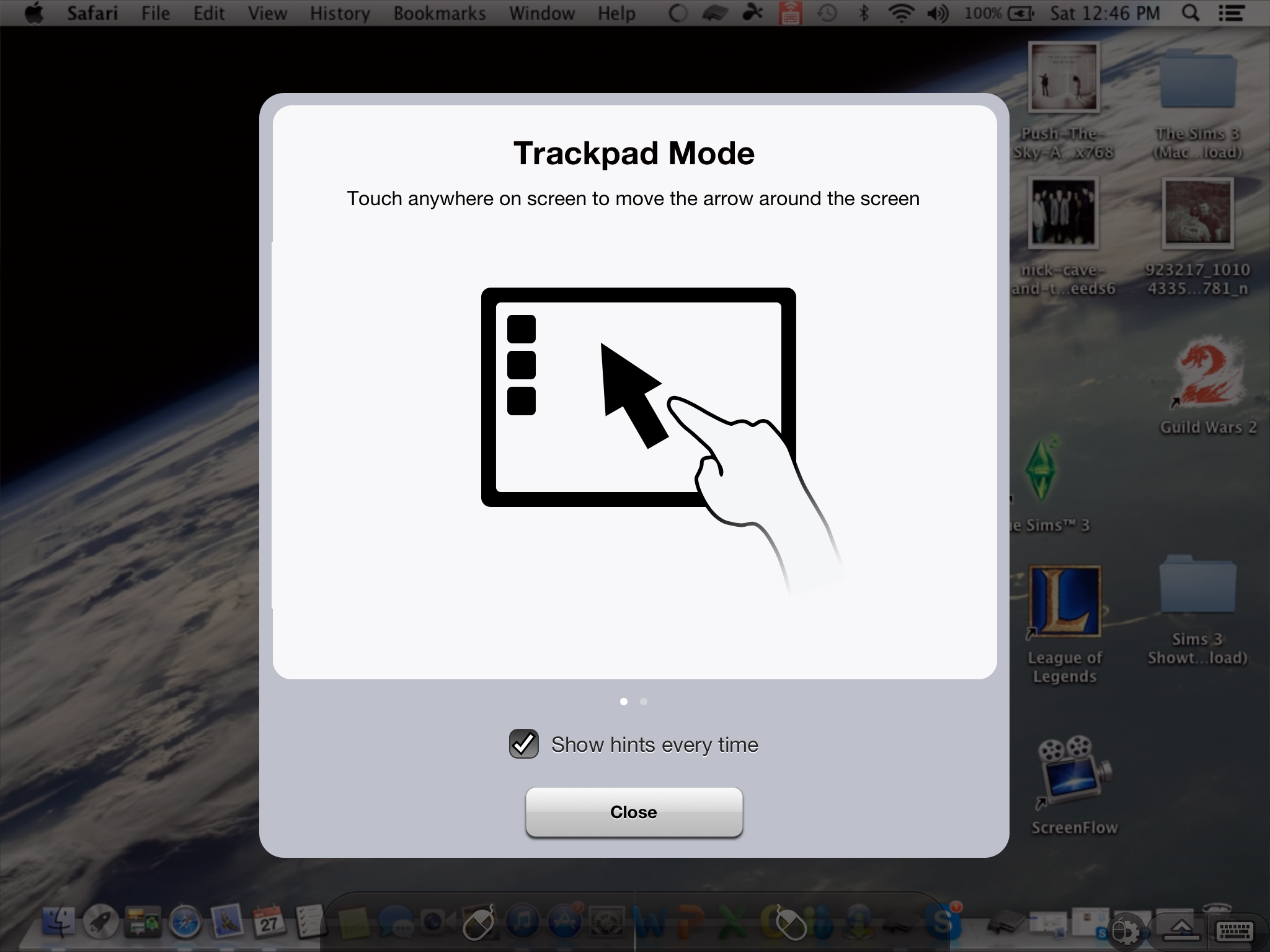
for advanced functionality. Splashtop allows you to not only control your Mac remotely, but also allows you to see the screen on your iPad. Therefore you can control your Mac from anywhere in the house. You can leave it on your desk and access it via Splashtop to e-mail a file, or play a movie that’s on your Mac and view it on your iPad in bed. Also you can use your Mac to access websites that require flash from your iPad.

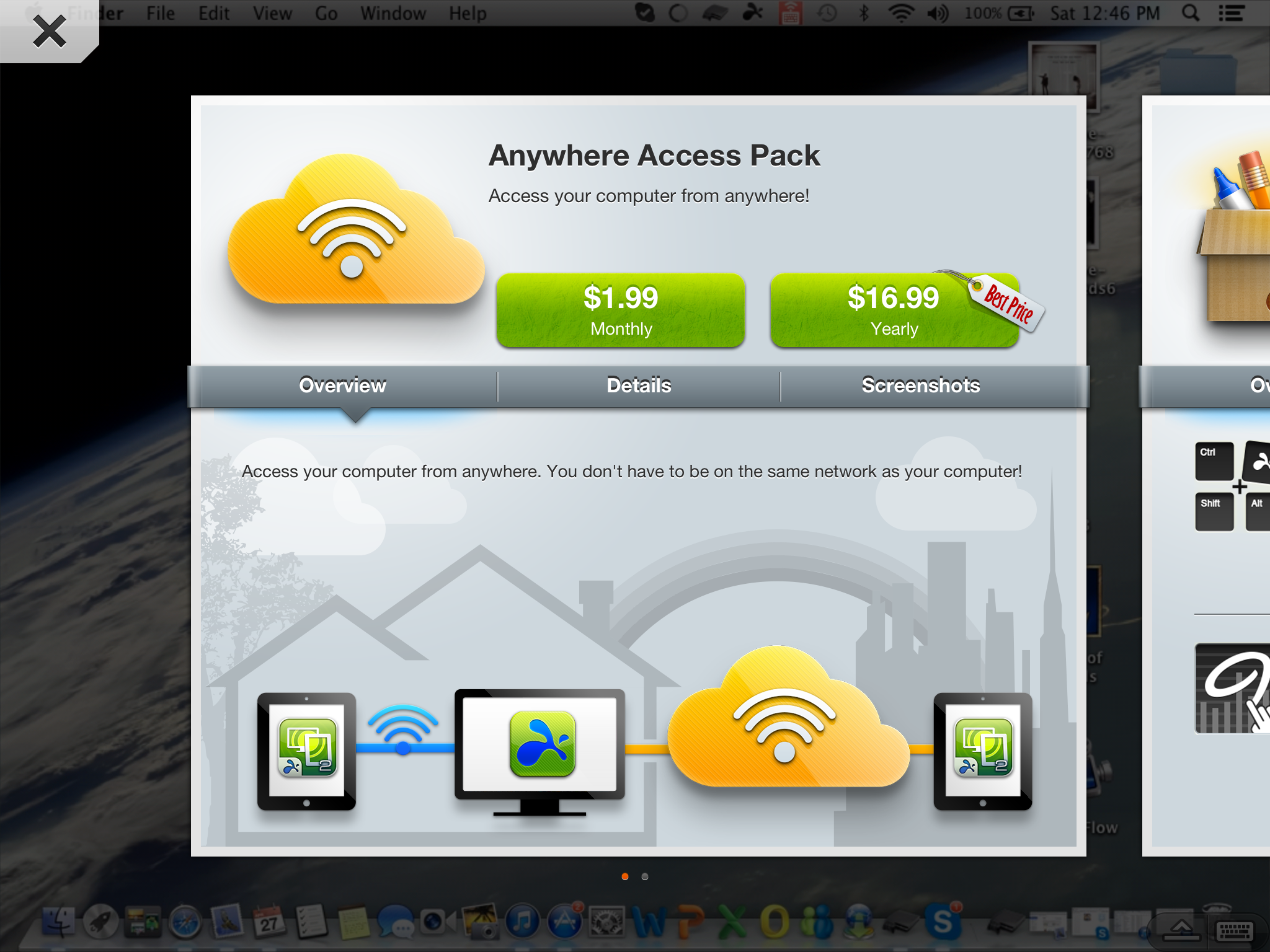
Splashtop only allows you to control your Mac from the same WiFi network. If you’d like to access your Mac from anywhere you can subscribe to Anywhere Access for $1.99/mo or $16.99/yr.

Both of these apps have made my life easier and more convenient. I’ve included several screenshots below that allow you to see the apps in action.

Air Keyboard (FREE)


DSC04773

IMG_0213

Splashtop 2 ($4.99)

DSC04772


IMG_0216

IMG_0217

IMG_0214

IMG_0218

IMG_0219

Can’t miss MAC deal! Name your own price for 10 apps

Screen Shot 2013-04-18 at 1.02.49 PM


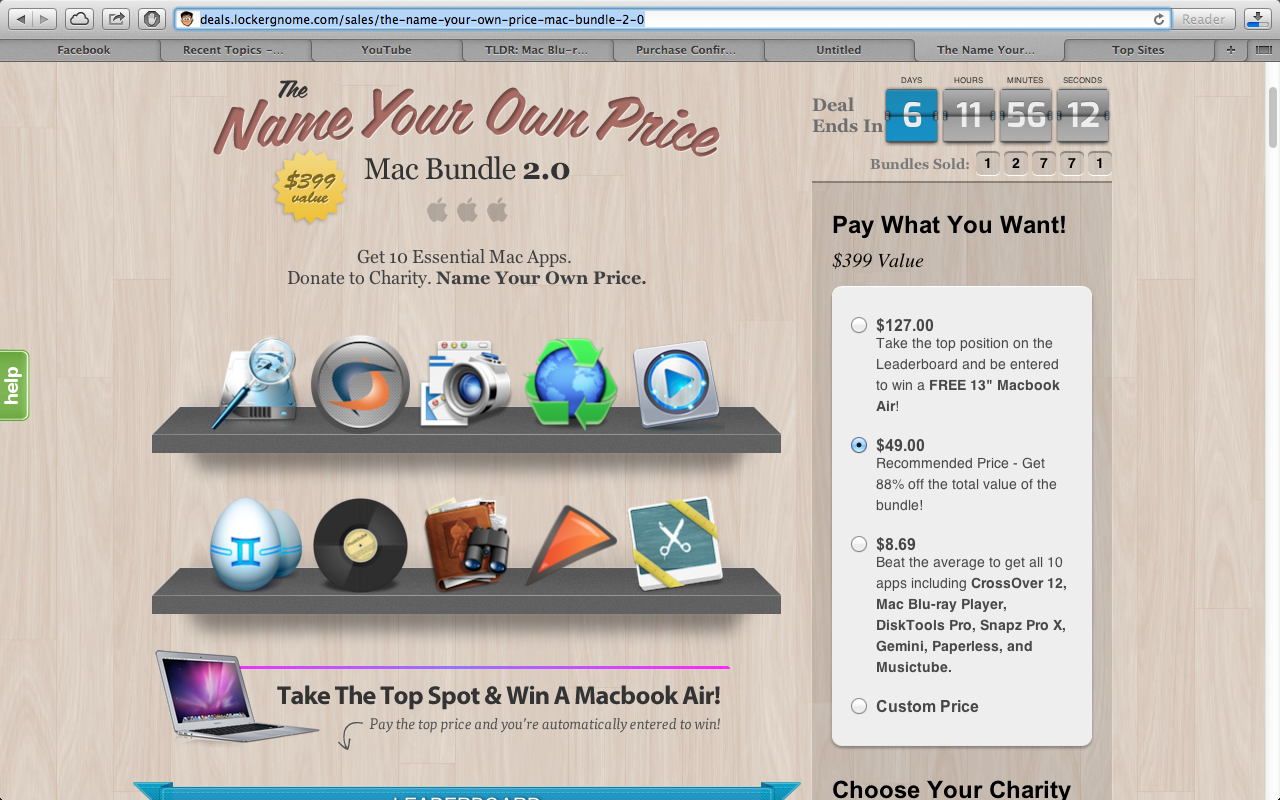
LockerGnome / Chris Pirillo present the ‘name your own price Mac bundle, 2.0’ where you can get $399 worth of map apps for whatever you’d like to pay. Pay at least the average price ($8.69 as of this post) and you get all ten apps (if you choose to pay less than that you’ll only get a handful of them).

The two apps that stood out to me are Crossover 12 which allows you to emulate Windows applications on your Mac and Snapz Pro X which allows you to record your screen. I run Windows 8 via BootCamp on my Mac but very seldom feel like booting to Windows. I’m hoping I can run some of my Windows games via Crossover, we’ll see. Snapz Pro will come in handy for recording gameplay videos as well.

Facebook moods

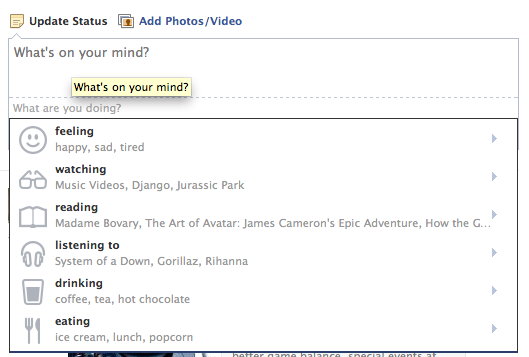
Facebook has now added a feature many MySpace users will remember, the ability to add a mood / listening to / drinking / eating / doing to your status updates.

So not only can you share what you’re thinking you can also share how you feel or what you’re doing while you’re thinking it.

Will this feature be good for Facebook, or is it just more senseless and useless information? Will you use it? For every post, or just occasionally?

Screen Shot 2013-04-18 at 12.12.22 PM


Screen Shot 2013-04-18 at 12.10.59 PM

I can finally stop using my iPad as my primary camera

So at some point this summer my iPhone’s camera took a dump and started taking blurry pictures (I think it’s because I always took it skiing). I still believe that a phone is the perfect camera, and an actual camera is an archaic and dying device much like a newspaper or paper books.

However for awhile I had to use my iPad as my primary camera, which was just a little awkward. It takes great pictures in my eye, and even side by side with my new camera I still think the iPad’s pictures look just as good.

Anyway, I picked up a Sony Cyber-Shot DSC-W620, slightly used on Amazon for about $30! Pretty sweet deal. I need to pick up an SD card before it can officially retire my iPad as it can only store 5 pictures on its internal memory, but I guess in the long run I won’t look like such a nerd holding up an iPad to take pictures and video.

IMG_0112


Below you can see a side by side comparison of the Sony Cyber-Shot and the iPad 4.

Cyber-Shot (14.1 megapixels)

DSC04693


iPad 4 (5 megapixels)

IMG_0111

How to create a picture slideshow in iMovie

Tonight I found myself wanting to take a series of pictures and edit them together into a video with music in the background. Seems easy enough, right? Well I’m no iMovie expert and it took a bit to figure it out, so I figured I’d share the process with you in case you happen to be having the same problem.

First of all you’ll want to create a new project.Screen Shot 2013-04-02 at 1.36.48 AM

I assumed I’d be able to find my pictures in the event library on the left side, however they were nowhere to be found. So I clicked import and thought I’d be able to get pictures into my library that way, however this method only allows you to add video files.

The easiest way to get pictures into your project is to open iPhoto and select all of the pictures you want. Next you’ll want to drag them over to iMovie and drop them right onto the project (the top left area where the timeline is). If you try to drop them anywhere else you’ll get a message saying you can drop them directly onto the timeline.

That’s basically it. You can edit the rest as you please and finalize your project to get a completed slideshow. I’ll post my final project below as an example once it finishes processing.

I hope I was able to help.

The new SiriusXM web player

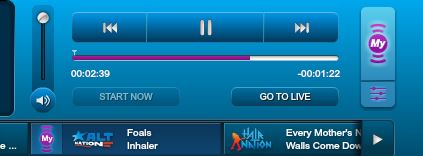
I listen to SiriusXM often in the car, but just as often on my computer or phone while I’m working out, cleaning or reading. The other day I was surprised to find a new and improved SiriusXM internet player. You can still listen in on the live broadcasts on the hundreds of channels available, but now there’s a new feature called MySXM.

As you can see below the MySXM logo appears next to the player and you can click on it to switch between your personalized MySXM channel and the live channel.

Capture2


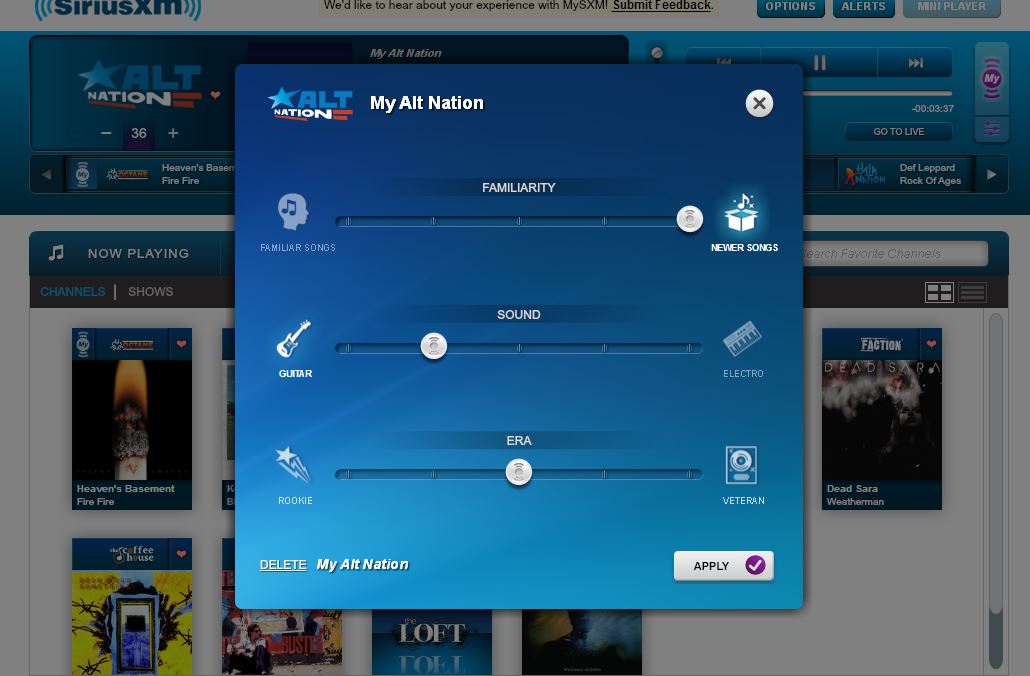
MySXM will let you adjust the types of songs a channel plays, giving you an experience somewhat similar to Pandora or Spotify. For example Alt Nation lets me choose whether I’d prefer more familiar songs or newer songs. Guitar based songs or more electronic based songs, and lastly newer or veteran artists. It’s an interesting addition to a great music service.

Capture

OnLive Desktop: Microsoft Office on the iPad

OnLive01

You may have heard of OnLive, a company best known for it’s streaming / cloud gaming platform that allows you to play PC games on demand without downloading anything. Well now they also offer the OnLive Desktop app which allows you to access a PC in the cloud on your tablet. There are quite a few apps that will let you connect to your own desktop, however in this case you’re connecting to one of their desktops that have free, pre-installed apps (pretty much just Microsoft Office 2010 right now for free members).

Currently there are two service plans, Standard (free) and Plus ($4.99/mo) with Pro ($9.99/mo) listed as coming soon. The Standard service gets you access to a desktop (with Word, Excel, PowerPoint and Adobe Reader) as available (I didn’t have any wait at all when I tried it this morning) and 2GB of cloud storage. I assume you can access your files on another computer by logging into your account, however when I tried to log into my account on my MacBook I kept getting redirected to the login page.

The Plus plan grants your priority access to a desktop, allows you to use Internet Explorer to browse the web with Flash enabled and includes “Gigabyte speed” cloud storage and Webmail. It doesn’t specify if it includes more cloud storage than the Standard 2gb, but it notes you can use DropBox and other cloud storage options with it.

The Pro plan offers the benefits of the Plus plan with 50gb of cloud storage. There’s also an Enterprise plan and Collaborative plan ‘coming soon’ with various other benefits included.

So far my experience with OnLive on my iPad has been a decent one. I noticed a tiny bit of lag when typing and clicking (or rather tapping) on things, but this very well could be due to some slower than preferable WiFi. Otherwise everything worked as expected and looks quite good on the iPad. I could certainly imagine this being a useful tool until Microsoft releases Office for the iPad. The app and its Standard service are free, so I recommend you create an account and give it a try. You never know when you might need it.

Below are a few screenshots of it running on my iPad:

20130209-103603.jpg

20130209-103613.jpg

20130209-103622.jpg

iPad: Final Fantasy Dimensions / The Walking Dead

IMG_0004

I’ve used the first gen Kindle Fire and the 7″ Kindle Fire HD and enjoyed both, but I finally decided to become an iPad owner. I’d describe myself as quite the Apple fan. I love their story, I love their attitude and I love their products. I use a 13″ MacBook Pro (2012) and the iPhone 4 and love both. They’re both very solid, sleek and sexy products with great operating systems (I also run Windows 8 on my MacBook and enjoy it). I love the iTunes store and have a lot of iTunes content, and I could still access all of my Amazon content via the Kindle and Instant Video apps, so the iPad was a great investment in my eyes.

IMG_1910

So now I’m the owner of a white 32gb iPad 4 as you can see in the blurry as crap picture above (sorry about that). So far it’s been a great experience. The retina display is absolutely amazing, text on websites looks incredibly crisp and HD movies look absolutely stunning. The amount of apps available is a HUGE improvement over the Kindle Fire HD (sorry Amazon) and I’m glad I made the purchase.

I’ve been enjoying Final Fantasy: Dimensions a lot so far. Dimensions is a modern Final Fantasy game created in the old 16 bit style and it’s a wonderful throwback. It looks and sounds great and so far it is a blast to play. It is an episodic title and the prologue is free, chapter 1 is $2.99 and the 3 remaining chapters are $6.99, or you can buy all of the chapters for $19.99. I think I’m going to buy the chapters as I get to them because the game is about 40 hours along and I’m sure it’ll take me at least several weeks to finish and I’ll probably get distracted.

IMG_0005

IMG_0006

I’ve also been playing The Walking Dead, which I’ve played on the 360 but since the first episode is free I figured I’d try it out. I’m going to play the opposite type of character on my iPad playthrough, so I’m pretty much going to be a ruthless son of a bitch throughout the game 🙂 Should be fun.

IMG_0010

I’ve also checked out Infinity Blade II which looks amazing. If you have any other recommendations for must play games feel free to suggest them in the comments. Anyway, I’ve included a few more screenshots below. Enjoy!